
Most windows in the Infront Professional Terminal have a "⋮" tools menu in the top right corner for quick access to settings of the current window.
Below is an example of the tools menu from the "Company" window:
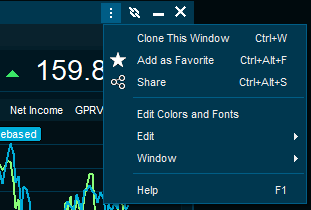
Commands common for all window menus
-
Clone This Window
-
Add as Favorite
-
Share
-
Edit Colors and Fonts
-
Window
-
Help
Clone This Window
Creates a duplicate of the current window.
Cloning a window will result in a window of the same size. While the window is selected, type to search for another instrument. This makes it easy to add a lot of information to your workspace quickly.
Add as Favorite
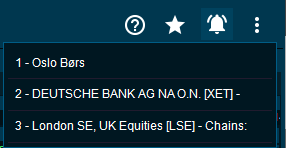
Adds the window as a favorite. Favorites are available from the main menu on the very right.
Share
For more information, see Share window.
Edit Colors and Fonts
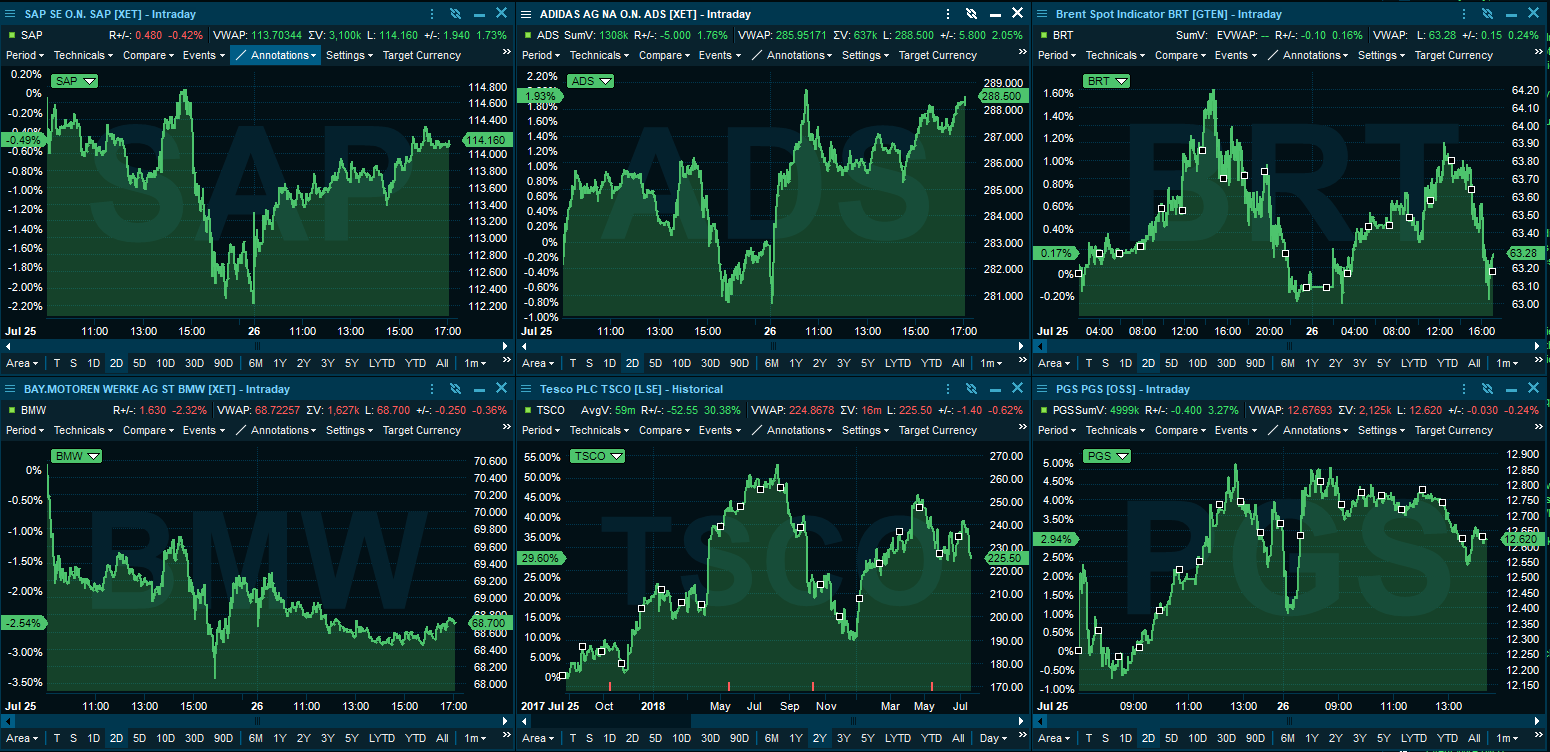
Change colors and fonts for different windows.
Window
|
Element |
Description |
|---|---|
|
Show Extra Information |
Clear this command to collapse the bar showing additional information. Press <F11> or select the command from the menu to display the bar again. |
|
Show Caption |
Cancel the selection to hide the title bar of the window. Press <F12> or select from the menu to display it again. |
|
Pin Window |
You can force a window to stay on the screen for all desktops (see Desktop). This is useful for windows that you always want to see - no matter which desktop you move to. |
Help
Opens the online help for this window.