
Defaults
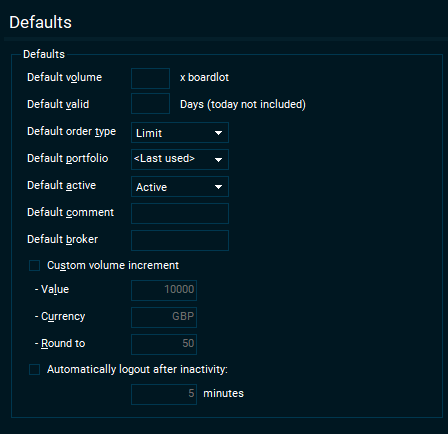
|
Element |
Description |
|---|---|
|
Default volume |
Set the default board lots you wish to see in the "Order Entry" window. (A board lot is a standardized number of shares defined by a trading venue as a trading unit). |
|
Default valid |
The number of days an order should be valid for. |
|
Default order type |
When opening an "Order entry" window, this setting allows you to specify the default order type. |
|
Default portfolio |
Useful if you have access to more than one portfolio. |
|
Default active |
Orders can be sent as active or inactive to your trading service. |
|
Default comment |
Some trading services allow for sending comments. Use the "Default comment" field if you want to include information in a comment by default. |
|
Default broker |
Select your preferred broker. |
|
Custom volume increment |
The volume field of an "Order Entry" window can be made to increase or decrease by a certain amount when clicking on the up and down arrows or using the up and down arrows on your keyboard. |
Limits
|
Element |
Description |
|---|---|
|
Limit per order |
Set the currency value per order as a limit. If you exceed the limit per order, the gross price field will highlight in red and you will receive a warning. |
|
Limit per day |
As with the limit per order, you can also specify a currency value limit per day. You will also receive a warning. |
|
Limits currency |
Set the currency of the limits. |
Trading Alerts
|
Element |
Description |
|---|---|
|
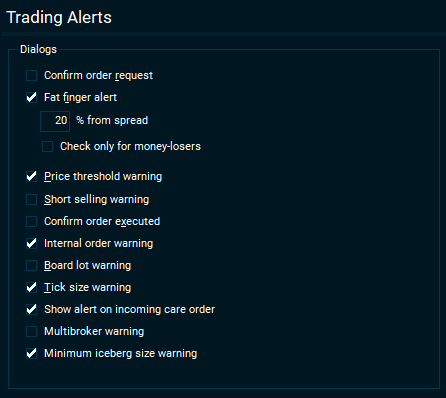
Confirm order request |
If this checkbox is selected, you will be asked to confirm before the order is placed. |
|
Fat finger alert |
Specify how far away from the current bid/ask spread the price you enter should be before it triggers a warning. This is useful to safeguard against typing in extra numbers by accident. For example , the user my have entered 2000 instead of 200 as the price. |
|
Short selling warning |
Checks the volume of long positions in your portfolio for an instrument you are selling and warns you if you are selling more than you own. |
|
Confirm order executed |
Get a confirmation when the trading service confirms your order as executed. |
|
Tick size warning |
Warns you when the price you enter violates tick size rules of the trading venue. |
|
Show alert on incoming care order |
Get an alert if a care order was received from the trading service. |
New Order Window
|
Element |
Description |
|---|---|
|
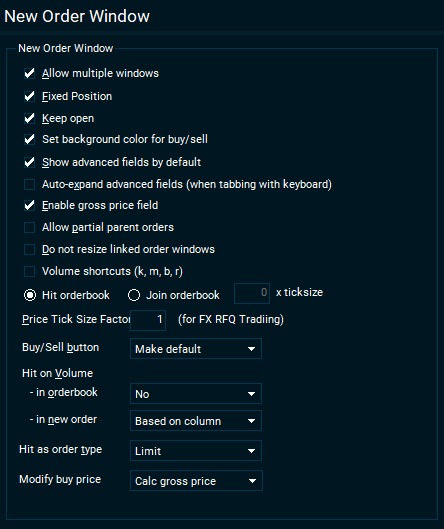
Allow multiple windows |
By default, only one is shown in the Infront Professional Terminal. |
|
Keep open |
When an order was placed, the default is to close the new "Order" window. Use this setting to keep the new order window open. |
|
Set background color for buy/sell |
When placing a buy or sell order via the right-click menu or via keyboard shortcuts, the background color of the new order window will be colored green for buy orders and red for sell orders. |
|
Shows advanced fields |
When opening a new order window, defines whether the advanced fields should be shown immediately or hidden until you click the "Adv" button. |
|
Auto-expand advanced fields |
If the "Shows advanced fields" checkbox is cleared, tabbing with your keyboard through the new order window will make the advanced fields show up automatically after gross price. |
|
Enable gross price field |
The gross price field is displayed in an order entry window. This option switches on the ability to type in your own gross price. If you have also entered a price, then the closest volume corresponding to the gross price will be calculated for you. In the example below, a price of 347 and gross price of 100,000 was entered. The terminal then calculated a volume of 288 automatically. |
|
Do not resize linked order windows |
In a compact workspace, it may be desirable to not resize the new order window when changing instruments. |
|
Hit orderbook, Join orderbook |
When opening an new order window buy clicking the "BUY" button (or "SELL" button):
|
|
Price Tick Size Factor |
(Available for FX RFQ trading only.) When increasing or decreasing the price of a new order with the up and down arrows, this will multiply by a factor of X with the tick size rules. Example: If the factor is set to 3, and the tick size is 0.0001, then clicking the up arrow on the price field will increase the price by 0.0003. |
|
Buy/Sell button |
When opening a new order window by selecting BUY or SELL from a right click menu or using keyboard shortcuts. This setting defines the behaviour of the BUY and SELL buttons.
|
|
Hit on volume |
|
Trading Window
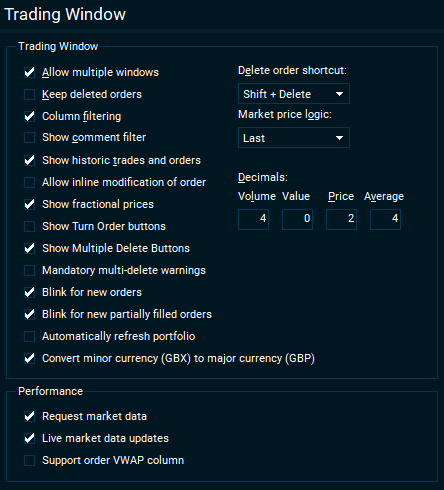
The "Trading Window" is where you can see all orders, trades and your portfolio positions.
|
Element |
Description |
|---|---|
|
Trading Window |
|
|
Allow multiple windows |
The default is to only show one. |
|
Keep deleted orders |
If selected, deleted orders will also be shown on the "Orders" tab. |
|
Column filtering |
Allows the user to filter orders based on various criteria. Below is an example where it is possible to choose to only show portfolio positions in a particular currency. |
|
Allow inline modification of order |
Allows the user to edit an order's price or volume by clicking in the field ("Orders" tab) without having to open an order window. |
|
Show fractional prices |
For some markets, the convention is to use fractions instead of decimals. |
|
Show Turn Order buttons |
For active orders, this feature allows you to change a buy order to a market sell order (turns sell orders to market buy orders). These buttons show up on the "Orders" tab. |
|
Show Multiple Delete Buttons |
If this feature is turned off, then only one "Delete" button is shown. Select the order and delete it. If it is turned on, three extra options are available: "Delete Buy", "Delete Sell", "Delete All". |
|
Blink for new orders |
New orders placed will blink on the "Orders" tab. |
|
Blink for new partially filled orders |
Partially filled orders placed will blink on the "Orders" tab. |
|
Automatically refresh portfolio |
When an order is placed or executed, check for updates to the portfolio. |
|
Performance |
|
|
Request market data |
Infront Professional Terminal will request the market data even if the user has not opened the market in their workspace. Turn this off for a small performance boost if you have a very large portfolio. |
|
Live market data |
Enable live market data updates. |
|
Support order VWAP column |
Show the VWAP column. |